Dr.Web Desktop Security Suite can operate both in a standalone mode and as a part of an anti-virus network managed by a centralized protection server. Such operation mode is called centralized protection mode. Using this mode does not require installation of additional software or Dr.Web Desktop Security Suite re-installation or uninstallation.
•In standalone mode, the protected computer is not connected to the anti-virus network and its operation is managed locally. In this mode, configuration and license key files are located on local disks and Dr.Web Desktop Security Suite is fully controlled from the protected computer. Updates of virus databases are received from Doctor Web update servers.
•In centralized protection mode, the protection of the computer is managed by a centralized protection server. In this mode, some functions and settings of Dr.Web Desktop Security Suite can be adjusted or locked according to a general (corporate) anti-virus protection policy implemented on the anti-virus network. A custom license key file received from the selected centralized protection server to which Dr.Web Desktop Security Suite is connected is used on the computer in this mode. A license or demo key file stored on the local computer, if any, is not used. The information about Dr.Web Desktop Security Suite operation, including statistics on threat events, is sent to the centralized protection server. Updates of virus databases are also received from the centralized protection server.
•In mobile mode, Dr.Web Desktop Security Suite receives updates from Doctor Web update servers, but uses settings stored locally and a custom license key file that were received from the centralized protection server.
When Dr.Web Desktop Security Suite is operating in the centralized protection mode or the mobile mode, the following options are blocked:
1.Deletion of a license key file in License Manager.
2.Manual start of an update process and adjustment of update settings.
3.Configuration of file system scanning parameters.
Configuration of SpIDer Guard settings, as well as an option to enable or disable it while Dr.Web Desktop Security Suite is running under control of the centralized protection center, are dependent on permissions specified on the server.
|
In centralized protection mode, scanning files according to a set schedule is not available.
Note that if starting scanning on demand is prohibited on the centralized protection server, the page for starting scanning and the Scanner button from the Dr.Web Desktop Security Suite window will be disabled. |

Centralized protection concept
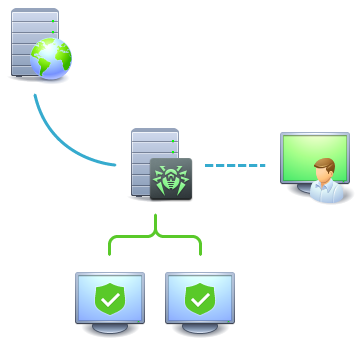
Doctor Web solutions for managing centralized protection use a client-server model (see the figure below).
Corporate computers or computers of users of an IT service provider are protected by local anti-virus components (in this case, of Dr.Web Desktop Security Suite), which ensure anti-virus protection and maintain connection to the centralized protection server.
|


Figure 2. The logical structure of the anti-virus network
Local computers are updated and configured from the centralized protection server. The entire stream of instructions, data and statistics in the anti-virus network passes the centralized protection server. The volume of traffic between protected computers and the centralized protection server can be significant, therefore an option for traffic compression is provided. Using encryption while transmitting data prevents leak of sensitive data or substitution of software downloaded to protected computers.
All necessary updates are downloaded to the centralized protection server from Doctor Web update servers.
Changes in the configuration of local anti-virus components and command transfer are performed by anti-virus network administrators using the centralized protection server. The administrators manage configuration of the centralized protection server and topology of the anti-virus network (for example, they validate connection of a local station to the network) and configure operation of individual local anti-virus components when necessary.
|
Local anti-virus components are not compatible with anti-virus products of other companies or Dr.Web anti-virus solutions if the latter do not support operation in the centralized protection mode (for example, Dr.Web for Linux version 5.0). Installation of two anti-virus programs on the same computer can cause a system crash and loss of important data. |

|
Dr.Web Desktop Security Suite 11.1 operating in centralized protection mode is compatible with Dr.Web Enterprise Security Suite 11, 12, 13 and 13.0.1. |
The centralized protection mode allows exporting and saving Dr.Web Desktop Security Suite operation reports using the centralized protection center. Reports can be exported and saved in the following formats: HTML, CSV, PDF, and XML.
Connecting to an anti-virus network
Dr.Web Desktop Security Suite can be connected to an anti-virus network in one of the following ways:
•On the Mode tab of the Dr.Web Desktop Security Suite configuration page.
•Using the esconnect command of the drweb-ctl command-line management tool.
Disconnecting from an anti-virus network
Dr.Web Desktop Security Suite can be disconnected from an anti-virus network in one of the following ways:
•On the Mode tab of the Dr.Web Desktop Security Suite configuration page.
•Using the esdisconnect command of the drweb-ctl command-line management tool.