To delete all threats
•In the top right corner of the Scan results screen, select Menu  > Delete all.
To move all threats to the quarantine
•In the top right corner of the Scan results screen, select Menu > All to quarantine.
Neutralizing one threat at a time
Each object has its own set of available options. To expand the option list, select the object. Recommended options are placed first. Select one of the options:
 Delete to delete the threat from your device.
In some cases, Dr.Web cannot delete applications that use accessibility features of Android. If Dr.Web does not delete the app after you select the Delete option, reboot to safe mode and delete the app manually.
The option is not available for threats in system applications.
 Move to quarantine to move the threat to the isolated folder (see Quarantine).
If the threat is detected in an installed application, it cannot be moved to quarantine. In this case, the Move to quarantine option is not available.
 Ignore to temporarily leave the change in the system area or the threat as it is.
 Send to laboratory or False positive to send the file to the Doctor Web anti-virus laboratory for analysis. The analysis will show if there is a threat or it is a false positive. If it is a false positive, it will be fixed. To receive the analysis results, enter your email.
If the file has been sent to the laboratory successfully, the Ignore option is automatically applied to the object.
The Send to laboratory option is available only for added or changed executable files in the system area: .jar, .odex, .so, APK, ELF files, etc.
The False positive option is available for threat modifications and for threats detected in system area.
 More on the Internet to view the detected object description on the Doctor Web website.
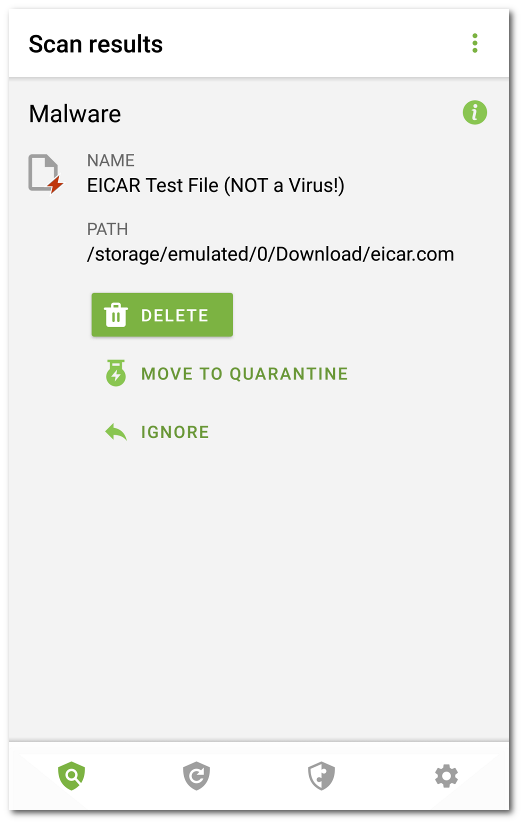
Figure 8: Neutralizing threats