Application control allows you to block access to an app or app groups completely or limit it temporarily.
To enable Application control
1.Open the app and choose the tab with the icon. This is the Application control tab.
2.Tap Enable.
The Application control How it works panel opens a short tutorial on how to work with the component. To switch to the next screen in the tutorial, swipe screen to the left or tap Next. To return to the previous screen, swipe to the right. To close the tutorial, tap Close.
If an app is blocked, a family member trying to access it sees the block screen.
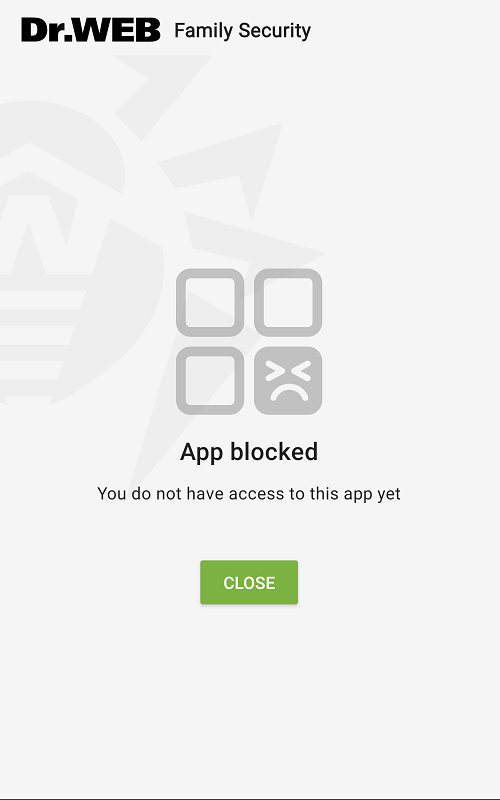
Figure 19: Block screen
To block an app or an app group completely
1.Open Application control and choose the Apps panel.
2.Tap the  icon next to the app or group you want to block.
3.On the menu choose  Block.
You can also limit an app temporarily by adding it to a schedule.
To block an app added to a group, you need to block the whole group. It is not possible to block or add to a schedule only one app from a group.
To unblock an app or an app group
1.Open Application control and choose the Apps panel.
2.Tap the icon next to the app or group you want to unblock.
3.On the menu choose  Unblock.