To start scanning
1.On the Dr.Web navigation panel, tap  .
.
2.On the Scanner screen (see Figure 5), select one of the following options:
•Express scan. Scan only installed applications.
•Full scan. Scan all files.
•Custom scan. Scan individual files and folders. You will need to select objects from the list (see Figure 6). To select all objects in the current location, use the check box at the top right. Then tap Scan.
|
On devices with Android 11 or later, the /Android/data and /Android/obb folders are system-protected and thus cannot be scanned. |

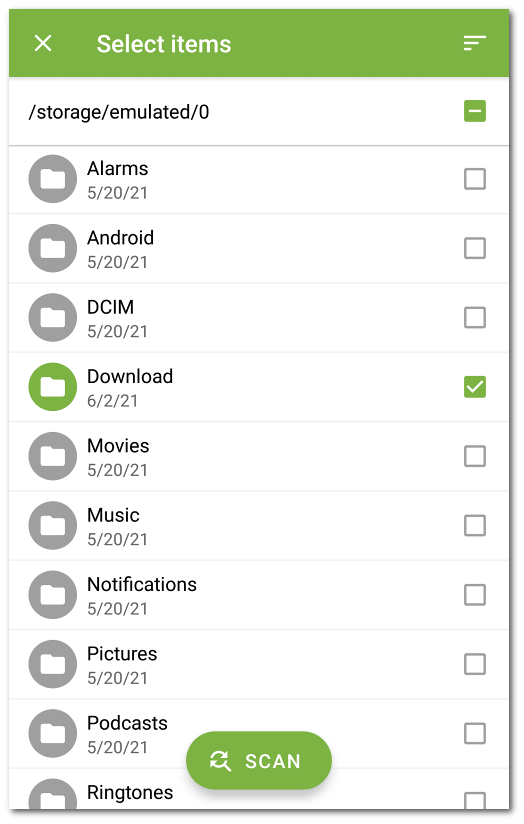
Figure 6: Custom scan
If Dr.Web Scanner detects threats, the indicator in the center of the screen turns red. Tap the indicator or the number of detected threats to open scan results (see Figure 7) and neutralize threats. If you switch to another screen or application, you can open scan results by tapping the icon on the notification bar.