URL filter controls access to the sites. It allows you to restrict family members’ access to unwanted internet resources. You can choose specific websites and block them completely or limit access to them. You can also block access to certain site categories.
Attempting to open a webpage from the blocked list, you will see a blocking notification (see Figure 17).
|
Please see the supported browser list.
Restrictions may be triggered after entering the address of a blocked site into the search bar, but before going to it.
In Dolphin Browser, block may not be triggered if the family member accesses the blocked site via link on another page. For example, from search results. |

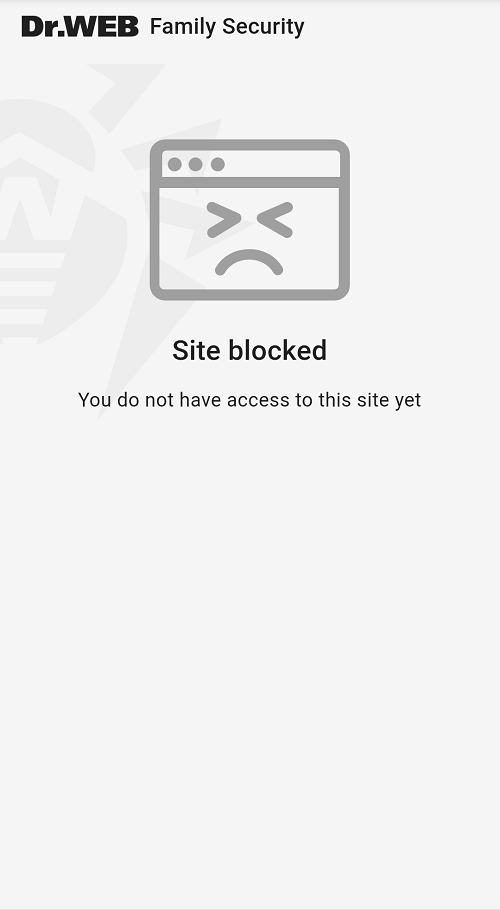
Figure 17: Blocking notification
To enable the URL filter
1.Open the app and choose the tab with the icon. This is the URL filter tab.
2.Tap Enable.
The URL filter How it works panel opens a short tutorial on how to work with the component. To switch to the next screen in the tutorial, swipe screen to the left or tap Next. To return to the previous screen, swipe to the right. To close the tutorial, tap Close.
Blocked and allowed site lists
To block a website, add it to the blocked site list. If a website is blocked, a family member trying to access it sees a blocking notification.
Enable the Access to allowed sites only setting so that a family member would be able to access only the sites from allowed site list.
If you want to allow access to a certain site which is included to one of the categories, add it to the allowed site list.
To add sites to a blocked or allowed site list
1.Open URL filter.
2.Choose the Site lists panel and select the tab with the list you need.
3.Tap the  button in the bottom-right screen corner.
4.Choose how to add a site to the list. You can enter the site address manually or upload it from .csv file. Uploading from file allows you to add several sites at the same time. When entering the address manually, use one of the following formats:
•example.com
•http://example.com
•https://www.example.com
•www.example.com
You can add only exact address of a site. URL filter does not support keywords and masks.
|
When you upload list from a file, default file explorer opens. If your default file explorer does not have access to the /Android/data/com.drweb.familysecurity/FamilySecurity/ folder, please download and use another file explorer. |
5.Tap Block or Allow depending on the list type.
If one or more of the sites are in another list or in a schedule, you will be prompted to move them to the current list. To move the sites, tap Move. To cancel the moving, tap the cross in the top-right corner of the pop-up window. If the site moved was the only site in schedule, the schedule will be removed automatically.
To remove site from the list
1.Open URL filter.
2.Choose the Site lists panel and select the tab with the list you need.
3.Swipe to the left the site you want to remove.
To cancel the deletion, tap Cancel on the bar.
To remove several sites from the list
1.Open URL filter.
2.Choose the Site lists panel and select the tab with the list you need.
3.Tap and hold the address of one of the sites you need in the list.
4.Select all the sites you wish to remove.
5.Tap the  icon in the top-right corner.
To cancel the deletion, tap Cancel on the bar.
If you want to transfer blocked or allowed site list from one device to another, you can export the list to a file on the first device. Then move the file with the list to the second device and add sites to a URL filter list with load from file option.
1.Open URL filter.
2.Select the Site lists panel.
3.Open Menu  in the top-right corner of the app main screen and choose Export.
4.Choose the list you want to export.
5.Tap Export.
On devices with Android 11 and later, file with the chosen list is exported to the /Download/Family Security folder as a .csv file.
On devices with Android 10 and earlier, file with the chosen list is exported to the /Android/data/com.drweb.familysecurity/FamilySecurity/ folder as a .csv file.
To export one or several sites to a file
1.Open URL filter.
2.Choose the Site lists panel and select the tab with the list you need.
3.Tap and hold the address of one of the sites you need in the list.
4.Select all the sites you wish to export to a file.
5.To export the sites, tap the  icon in the top-right screen corner. To cancel the export, tap the cross in the top-left screen corner.
On devices with Android 11 and later, file with the chosen sites is exported to the /Download/Family Security folder as a .csv file.
On devices with Android 10 and earlier, file with the chosen sites is exported to the /Android/data/com.drweb.familysecurity/FamilySecurity/ folder as a .csv file.
Site categories are determined by Doctor Web experts. You cannot change the categories. The category list contains the following categories:
•Known infection sources;
•Non-recommended sites;
•Adult content;
If you select this option, you will enable safe search in Google, Yandex, Bing, Yahoo, and Rambler. It means that adult content will be completely excluded from the search results.
•Violence;
•Weapons;
•Gambling;
•Drugs;
•Obscene language;
•Online games;
•Terrorism;
•Email;
•Social networks;
•Chats;
•URLs listed due to a notice from the copyright owner;
•Anonymizers;
•Cryptocurrency mining pools.
To block site categories
1.Open URL filter.
2.Select the Website categories panel.
3.Select the check boxes next to the categories you want to block. Changes will be saved automatically.
Tap the cross at the top-left corner to close the category list and return to the previous screen.
If you want to allow access to a certain site which is included to one of the categories, add it to the allowed site list.
|
Restrictions may be triggered after entering the address of a blocked site into the search bar, but before going to it.
In Dolphin Browser, block may not be triggered if the family member accesses the blocked site via link on another page. For example, from search results. |