Set the period for receiving updates and the source of updates for components. You can also create an update mirror to receive updates on another computer.
You can configure the following Dr.Web update parameters:
To open update settings
1.Open Dr.Web menu  , then select Security Center.
2.Make sure Dr.Web operates in administrator mode (the lock at the bottom of the program window is open  ). Otherwise, click the lock
  .
.
3.At the top of the program window, click  .
.
4.A product main settings window opens. Select Update at the left of the window.
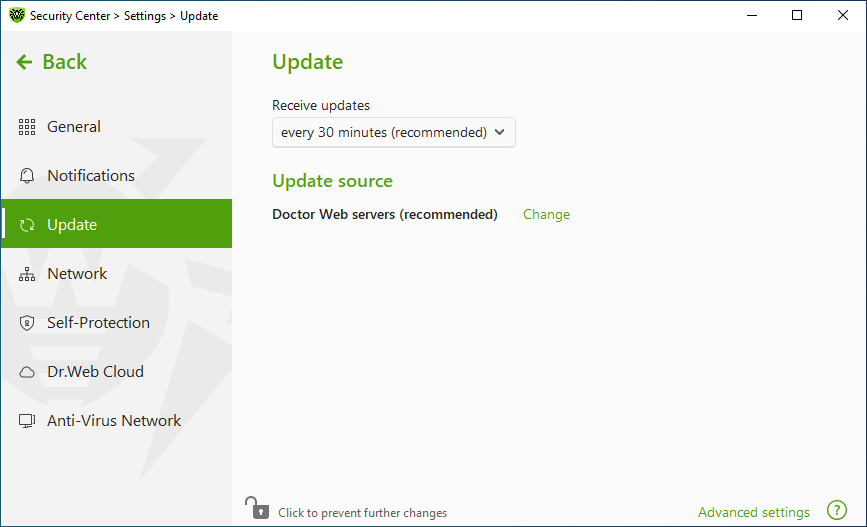
Figure 30. Update settings
The default value (30 minutes) is optimal to keep information on threats up-to-date. To specify the frequency of updates, select the necessary value from the drop-down list.
Automatic update is performed in the background mode. You can also select the option Manually from the drop-down menu. In this case, you will have to manually run the Dr.Web update.
The default update source is Doctor Web servers (recommended).
To specify the update source that suits you best
1.In the update settings window (see Figure Update settings) , in the Update source group, click the Edit link. The update source settings window opens.
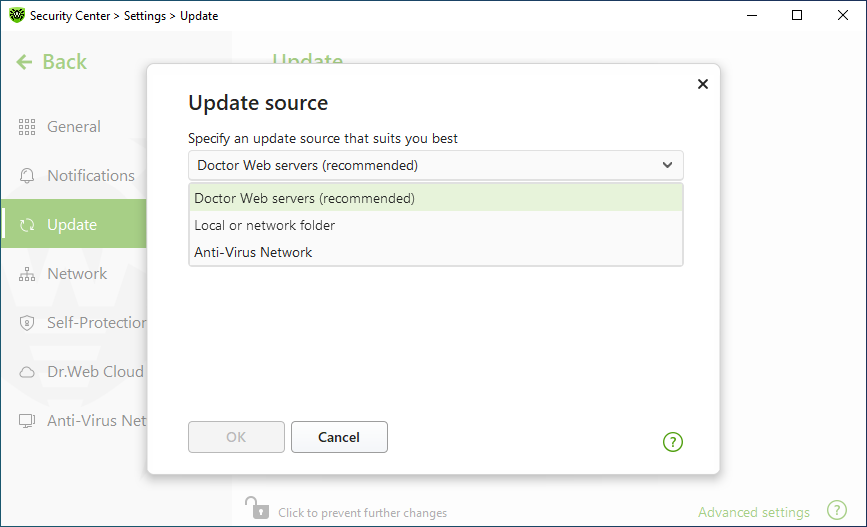
Figure 31. Configuring update source
2.Select an update source that suits you best from the drop-down list.
•Doctor Web servers (recommended). Updating from Doctor Web servers via the internet. If you want to download updates via a secure protocol when it is possible, select the Use HTTPS connection when possible check box.
•Local or network folder. Updating from local or network folder to which the updates have been copied. Specify the path to the folder (by clicking Browse button or by entering the path manually using UNC), enter the user name and password if necessary.
•Anti-Virus Network. Updating from a local network using a computer with Dr.Web product installed and an update mirror created. Select the computer that will be used as an update source.
3.To save the changes, click OK.
|
If Dr.Web product of 2.0 version is already installed on the computer, do not select a computer with previous Dr.Web product versions installed as an update source as it may lead to critical operation issues. |

Advanced settings
To open advanced settings, click the Advanced settings link in the Update window (see Figure Update settings).
Update mirror is a folder to which the update files are copied. The update mirror can be used as an Dr.Web update source for other computers of the local network that are not connected to the internet.
To set your computer as an update mirror
1.In the update settings window (see Figure Update settings), click the Advanced settings link and enable the update mirror using the switcher  . The update mirror settings window opens.
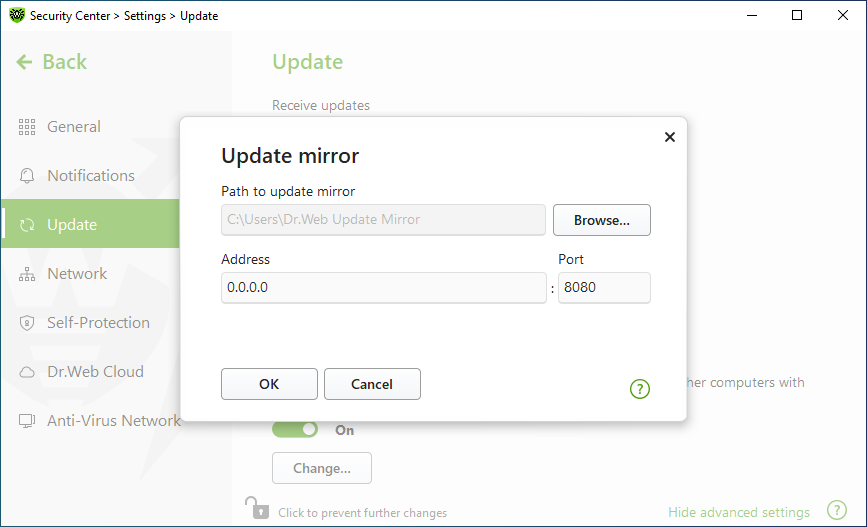
Figure 32. Configuring update mirror
2.Click Browse and select a folder to copy updates into. Please select an empty folder or create a new one. If the selected folder is not empty, all its contents will be deleted. You can also specify the path to the folder in UNC format.
3.If your computer is connected to several subnets, you can specify the IP address available to computers of only one subnet. You can also specify the port for HTTP server to receive connection requests.
•In the Address field, specify the host name or IP address in Ipv4 or Ipv6 formats.
•In the Port filed, specify any free port.
4.To save the changes, click OK.
The frequency of the mirror updates corresponds to the value selected in Receive updates.
To create update mirror using command line
1.Copy the following files from the computer where the Dr.Web product is installed to a computer with internet access:
•Updater drwupsrv.exe located in the %PROGRAMFILES%\Common Files\Doctor Web\Updater folder.
|
A 32-bit file must be copied to a computer with a 32-bit OS. Both 32-bit and 64-bit files can be copied to a computer with a 64-bit OS. |
•Update zones file drwzones.xml located in the %PROGRAMDATA%\Doctor Web\Updater\etc folder or the %ALLUSERSPROFILE%\Doctor Web\Updater\etc folder.
•License key file drweb32.key or another suitable file from the %PROGRAMFILES%\DrWeb\ folder.
2.Run a command prompt as administrator and use the following download command:
C:\Mirror\drwupsrv.exe -c download -s 90 --zones=C:\Mirror\drwzones.xml -r C:\Mirror\repo --key-dir=C:\Mirror --data-dir=C:\Mirror -l --log-dir=C:\Mirror --verbosity debug |
or the mirror command for creating an update mirror:
C:\Mirror\drwupsrv.exe -c mirror -s 90 --zones=C:\Mirror\drwzones.xml -r C:\Mirror\repo --key-dir=C:\Mirror --data-dir=C:\Mirror -l --log-dir=C:\Mirror --verbosity debug |
where C:\Mirror is a folder with the copied Dr.Web files.
It is not necessary to specify product version. You can use the information from the drwzones.xml file. For that, remove the parameter -s. Example:
C:\Mirror\drwupsrv.exe -c mirror --zones=C:\Mirror\drwzones.xml -l --data-dir=C:\Mirror --key-dir=C:\Mirror --verbosity debug |
The full list of parameters and their descriptions can be found in the Dr.Web Updater Command-Line Parameters section.
Connection via proxy server
Use the -g [ --proxy ] parameter to specify a proxy server address for updating. <address>:<port>. Example:
-g 11.22.33.44:3128 --proxy=11.22.33.44:3128 |
If the computer where the update mirror is created uses a proxy server to connect to the internet, additional command line parameters must be set:
C:\Mirror\drwupsrv.exe -c download -s 90 --zones=C:\Mirror\drwzones.xml -r C:\Mirror\repo --key-dir=C:\Mirror --data-dir=C:\Mirror -l --log-dir=C:\Mirror --verbosity debug --proxy=11.22.33.44:3128 --user=qwerty --password=qwerty |
Parameters -u [ --user ] and -k [ --password ] are used for specifying username and password for proxy server authorization. Example:
-u qwerty -k qwerty --user=qwerty --password=qwerty |