If the application was installed from the Doctor Web website
1.If you are buying license at the first launch of the app, on the License screen (see Figure 8), choose Details. If you already have or had a license, open Menu  in the top-right screen corner and choose License. Then on the License screen, tap Purchase license.
By purchasing a license, you receive a 1-year subscription and can choose a number of family members’ devices under protection: 1, 5 or 10. The subscription is not renewed automatically.
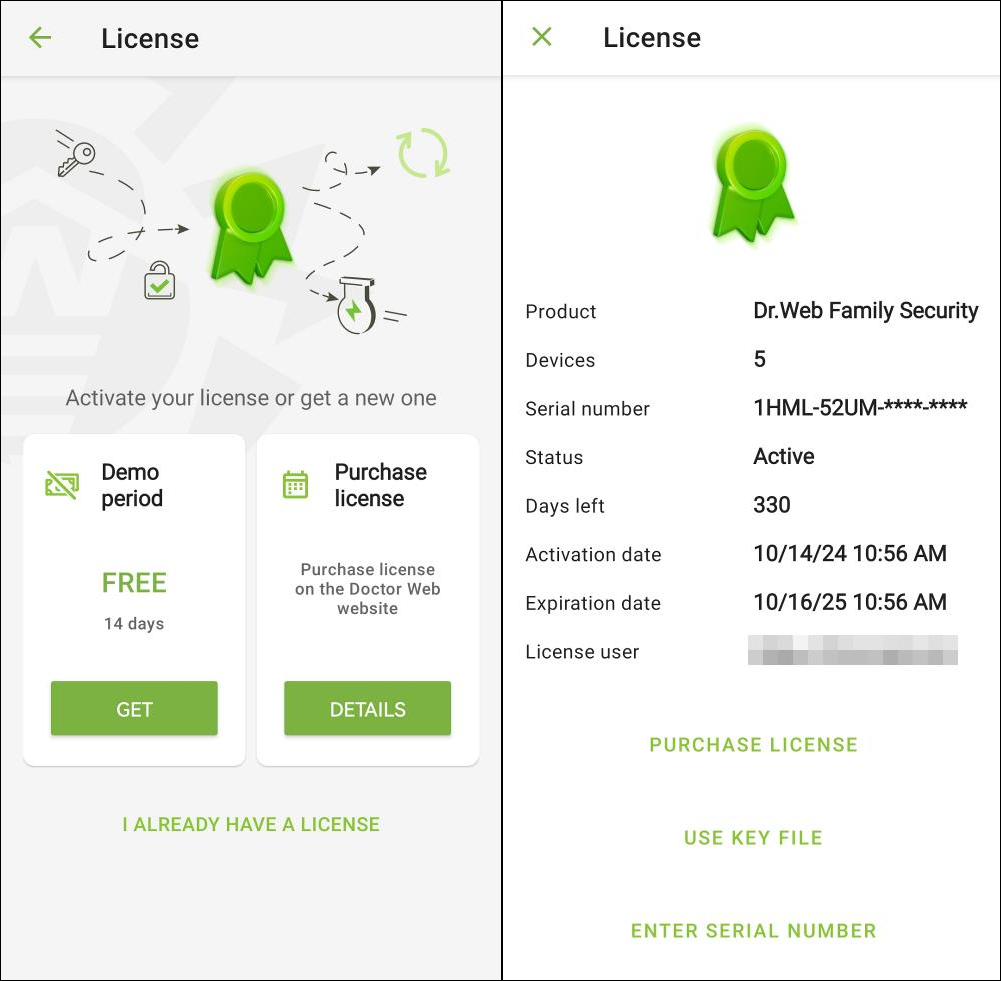
Figure 8: Purchasing license at the first launch (left) and when you have or had a license (right)
2.You will be redirected to the Doctor Web online store.
You can also open it at https://estore.drweb.com/family_security/.
3.Select the license period and the number of devices to protect.
4.Tap Continue.
5.Fill out the form and select Continue.
After you complete your purchase, you will be sent a serial number to your email address. You can also choose to receive the serial number via SMS message to your phone number. You will also get an email with the license key file. You can use it to activate or restore your license.
6.Return to the application. On the License screen select Enter serial number or Use a key file.
If you have selected Enter serial number, enter your purchased serial number and tap the Activate button.
If you have selected Use a key file, open the folder where you have copied the key file or the entire ZIP archive to, and tap it.
If the license is not activated because of a possible technical issue, contact our technical support: https://support.drweb.com/.
If the application is installed from Google Play
|
If you Google profile is bound to a card issued on the territory of the Russian Federation or the Republic of Belarus, follow the instruction on purchasing a license for the version from the website.
If you want to use Family Security on Huawei device, make sure that it has up-to-date version of the HMS Core package. Otherwise, some functions might operate incorrectly. |

If demo license is active, your subscription is automatically renewed and charged each month. You don’t need to renew or buy it by yourself. You can pause or cancel the automatic license renewal in subscriptions settings in Google Play.
|
If you have an active license, the License has only Yearly license available. If you have paused Monthly subscription, you can resume it in subscription settings in Google Play. |
If you do not have an active license, the license purchasing screen appears when you log in to the app.
To purchase a monthly subscription
1.On the License screen (see Figure 9), select Monthly subscription and tap Details.
Selecting Monthly subscription, you receive free 30-day demo license with 10 family members’ devices under protection. After that, your subscription is automatically renewed and charged each month.
App might request access to your contacts. Allow access to automatically fill out the form. If you deny access, you will need to fill out the form manually.
2.Select an account or add a new one and tap OK.
3.Tap Subscribe and pay for your subscription.
4.After you complete your payment, your license will be activated automatically. If the license is not activated because of a possible technical issue, contact our technical support: https://support.drweb.com/.
|
Deleting Family Security does not cancel the subscription. If you use the subscription-based license, you can pause or cancel your subscription using Google Play. |
To purchase a yearly license when you don’t have an active license
1.On the License screen (see Figure 9), select Yearly license and tap Details.
Selecting Yearly license, you receive a 1-year subscription and can choose a number of family members’ devices under protection: 1, 5 or 10. Yearly license is not renewed automatically.
App might request access to your contacts. Allow access to automatically choose the account. If you deny access, you will need to choose it manually.
2.Select an account or add a new one and tap OK.
3.Choose the option you want: 1, 5, or 10 protected family members’ devices.
4.Tap the price button and pay for the purchase. After you complete your payment, your license will be activated automatically. If the license is not activated because of a possible technical issue, contact our technical support: https://support.drweb.com/.
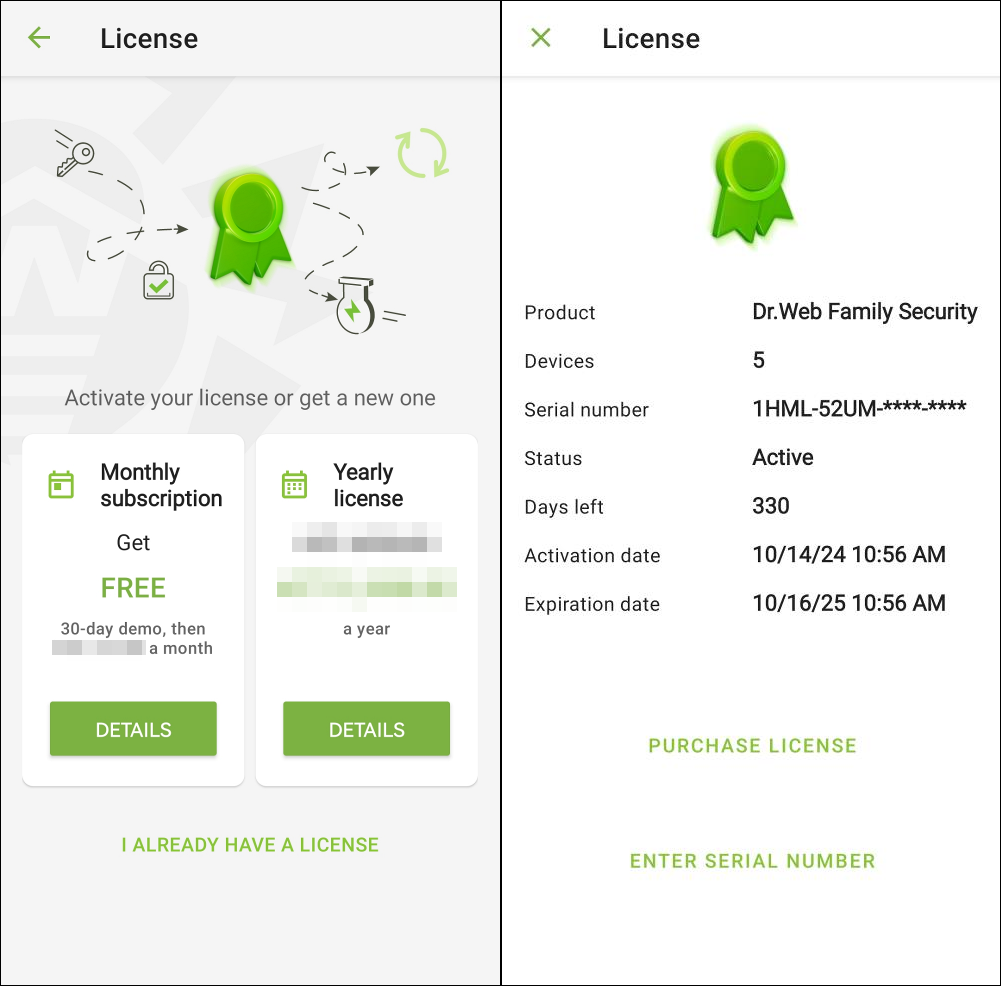
Figure 9: Purchasing license at the first launch (left) and when you have or had a license (right)
To purchase a yearly license when you have an active license
1.Open Menu in the top-right corner of the app main screen and choose License.
2.On the License screen (see Figure 9), tap Purchase license.
Selecting Yearly license, you receive a 1-year subscription and can choose a number of family members’ devices under protection: 1, 5 or 10. Yearly license is not renewed automatically.
3.Choose the option you want: 1, 5, or 10 protected family members’ devices.
4.Tap the price button and pay for the purchase. After you complete your payment, your license will be activated automatically. If the license is not activated because of a possible technical issue, contact our technical support: https://support.drweb.com/.
If the application is installed from HUAWEI AppGallery
|
Please make sure that your device has up-to-date version of the HMS Core package. Otherwise, some functions might operate incorrectly. |
1.Open Menu in the top-right corner of the app main screen and choose License.
2.Tap Purchase license.
3.On the License screen select the Purchase license option.
By purchasing a license, you receive a 1-year subscription and can choose a number of family members’ devices under protection: 1, 5 or 10. The subscription is not renewed automatically.
4.Create your Huawei account or log in to your current one. After logging in, grant the application the necessary permissions.
App can request access to your Huawei account. If you allow it, your email address will be filled out automatically. Otherwise, you will be prompted to select the email from the list in the pop-up window.
5.Enter your email address or check the automatically filled data.
6.Tap Purchase license.
After you complete your payment, your license will be activated automatically. If the license is not activated because of a possible technical issue, contact our technical support at https://support.drweb.com/.