Family manager account uses two types of settings:
•Device settings. Apply only to the device they are set on.
•Account settings. Apply to all devices on which family manager logs in.
Family member account uses only device settings.
To open the device settings screen, log in to your account and choose Settings item in the Menu  .
.
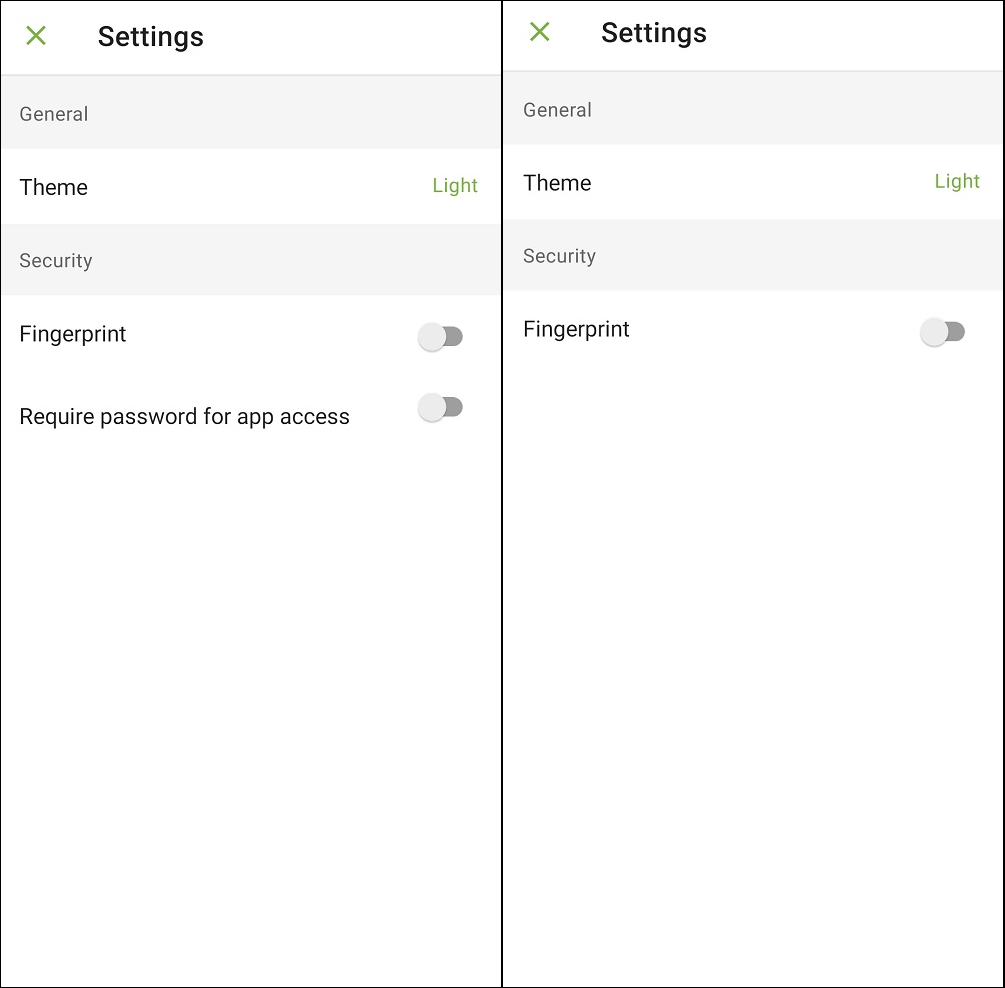
Figure 4: Device settings for the family manager (left) and family member (right)
Device settings contain the following options:
•Theme. Allows you to choose different modes for the application: light, dark, or system. Dark mode might help to decrease power consumption and lessen eye strain in low-light conditions.
•Fingerprint. Allows you to add a fingerprint to work with the app without the password or PIN code. Turn on the toggle and tap Add to add a fingerprint enrolled on the device. If the device does not have enrolled fingerprints, you will be prompted to enroll them. To go to device settings and add your fingerprint, tap Add in the pop-up window. Otherwise, tap Cancel.
|
Only family manager can use a fingerprint to log in or uninstall the app. Family members use fingerprints to work with the app itself. |

•Require password for app access. Allows you to enable mandatory password entering each time when you open the application. This option is available only for family manager account.
Family manager account settings
To open family manager account settings screen, log in to the family manager account and choose Account item in the Menu . Then, choose Account settings.
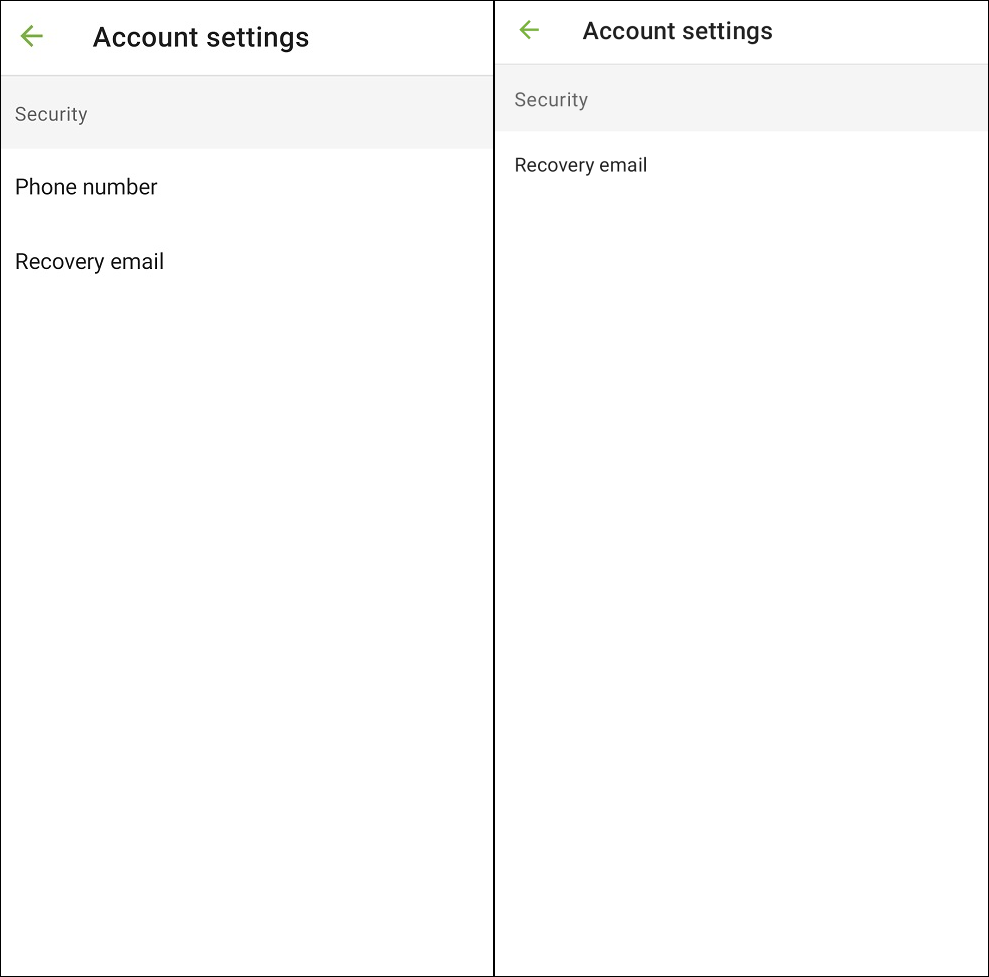
Figure 5: Account settings in version from site and HUAWEI AppGallery (left) and in version from Google Play (right)
Account settings contain the following options:
•Phone number. Allows family manager to manage their family members’ devices via SMS commands. Enter your phone number and tap Add. You can change or delete the phone number later. The number is kept in encrypted form and is not shared with third parties.
|
If you download the app from Google Play, adding phone numbers and sending commands via SMS are not available. |
•Recovery email. Allows you to add a recovery email address for resetting the password. Enter the recovery address and tap Continue. Enter the code sent to this address and tap Continue. If you did not get the code, tap Resend. The first code becomes invalid as soon as you request another one. You can change the email you added. To do so, tap Change recovery email and repeat the steps for adding a recovery email.