Unlocking device
If the device is locked, family member can send a push notification with an unlock request to the family manager. The family manager enables and disables notifications in family members’ profiles on the My family screen.
1.In the Menu  on the main screen, choose My family option.
2.Tap the name or the photo of the family member.
3.In the Menu select Edit.
4.Use the Via push notifications toggle button to enable/disable sending requests via push notifications. To successfully switch the setting, the family member’s device should have internet connection.
|
Sending push notifications requires internet connection. |

1.On the block screen, tap Ask to unlock to send an unblock request. The family manager defines the notification type in the account settings. Sending a push notification requires internet connection.
2.Enter your PIN code or use your fingerprint if you’ve enabled its use in the device settings.
3.Tap Send request.
After the request is sent, you will see a notification at the bottom of the screen.
Unlock device requests show on the main screen.
To unlock a device
1.Tap the push notification to open the application or open it manually.
2.To unlock the device, tap the Unlock button on the main screen (see Figure 13).
|
Sending push notifications requires internet connection. |
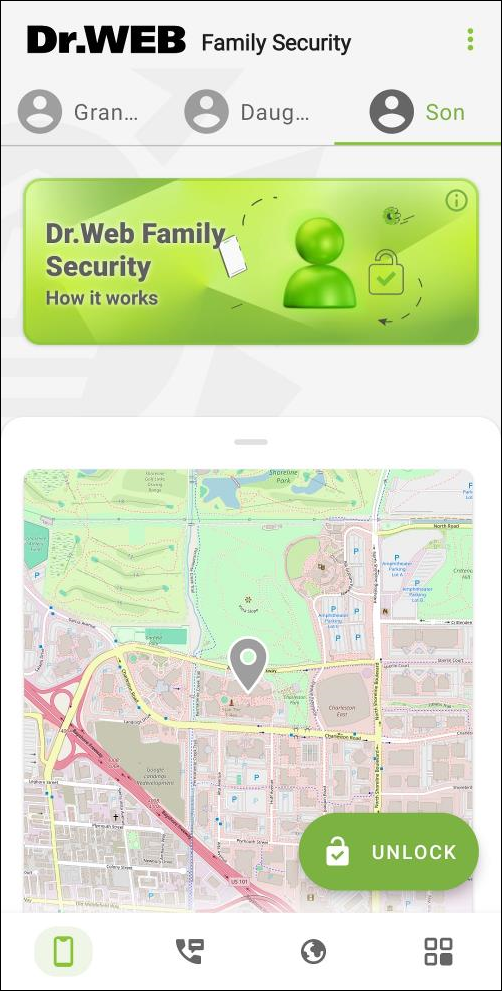
Figure 13: Unlock button
If you choose sending commands and requests via SMS, you can also enter unlock command manually.
|
If you download the app from Google Play, sending commands via SMS is not available. |
To unlock a device with an SMS command
•Send the UNLOCK#{family member’s PIN code}# command to the locked device. For example, UNLOCK#1234#.
|
To unlock device via SMS command, the family member’s device needs to have a SIM card with positive balance installed. The phone number needs to be the one the family manager added to the family member’s account when the family member’s device had been connected to the internet. |
Unblocking access to device settings
Family Security blocks family member’s access to some sections of the device settings to protect the app from being uninstalled and prevent revoking the permissions necessary for proper operation. Trying to access these sections, the family member will see the block screen. To unblock access, the family member needs to enter the family manager’s account password.
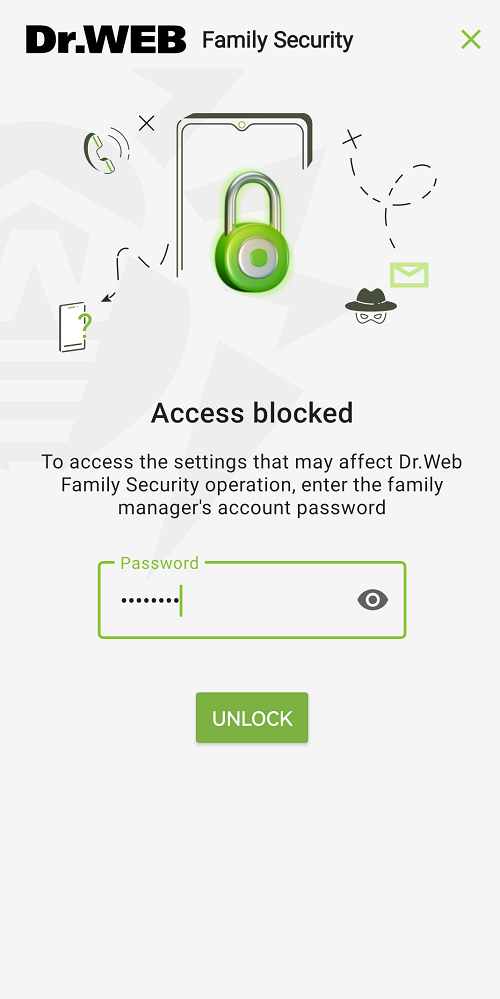
Figure 14: Device settings block screen