On the My family screen (see Figure 1) family manager can manage family members accounts. The family manager can create family members accounts, change their PIN codes, edit and delete them. If the number of family members created is higher than the number of devices that you can share the license with, on this screen the family manager can choose which accounts to protect.
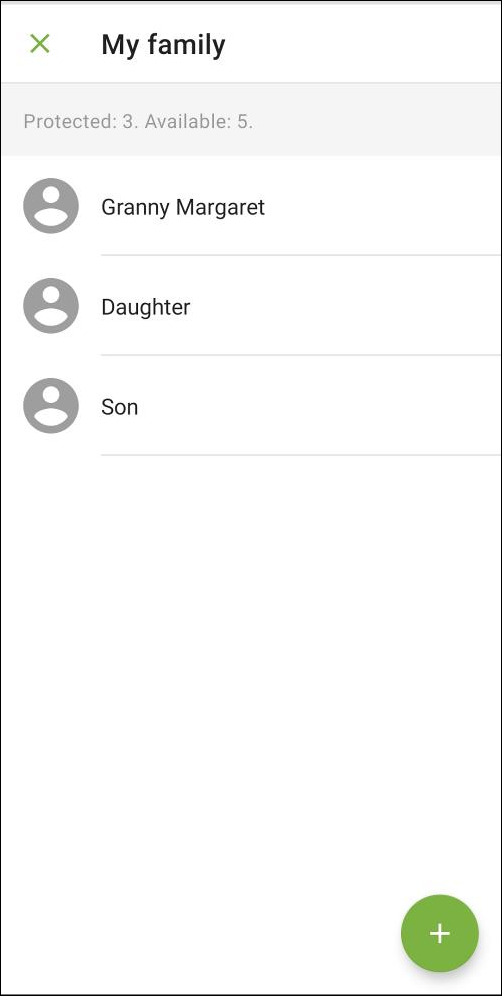
Figure 1: My family screen
To create a new family member account
1.Open Menu  in the top-right corner of the app main screen and choose My family.
2.Tap the  icon in the bottom-right screen corner. If you cannot see the icon, it means you have already created the maximum number of family members available to you. To create a new family member account, delete one of the existing accounts or purchase a license of another type. You can see the number of family members available to you on My family screen.
3.Fill in the fields with the family member’s information.
4.Choose how the main screen commands will be sent: via push notifications or via SMS. By default, the app uses push notifications.
To send commands via SMS, turn off the Via push notifications toggle button. To successfully switch the setting, the family member’s device should have internet connection. To send SMS, you need to enter the family manager’s and member’s phone numbers.
If the Via push notifications setting is enabled, the family member also can send you device unlock requests.
|
If you download the app from Google Play, sending commands via SMS and adding phone numbers are not available. The Via push notifications switch is not displayed.
Sending push notifications requires internet connection.
Your mobile operator may charge you for sending SMS. |

5.Tap Create.
6.A generated PIN code appears on the screen. Tap Continue to go to family member’s device setup. To postpone the setup, tap the cross in the top-left corner and choose Postpone. Later you can use Device setup panel on the main screen.
7.Follow the instructions on the Family member's device setup screen to finish the setup. If the family member has not installed Family Security yet, this screen will help you to send them a link to the app. To enter their account, family member needs either QR code, or PIN code and your email address. The Family member's device setup screen will help you to share those with the family member.
Family member’s PIN code is bound to the device. If a family member changes their device, a family manager needs to reset their PIN code.
1.Log in to the family manager account.
2.In the Menu choose My family.
3.Choose a family member from the list.
4.On the screen with the family member’s detailed information, tap Reset PIN code.
5.Confirmation screen opens. To change the user’s PIN code, tap Reset. To cancel the PIN code reset, tap Cancel.
After you confirmed the reset, the automatically generated PIN code appears on your screen.
The family member is automatically logged out of the account. To help the family member to log in again, tell them the new PIN code. Tap Share data to send the family member the PIN code or the QR code with it.
1.Log in to the family manager account.
2.In the Menu choose My family.
3.Swipe the family member’s name to the left and tap the  icon next to it. You can also touch the family member’s name and on the next screen in the Menu choose the Edit option.
4.Make changes.
5.To save the changes, tap the  icon in the top-right screen corner. To revert changes, tap the cross in the top-left screen corner and choose Don’t save.
To delete family member account
1.Log in to the family manager account.
2.In the Menu choose My family.
3.Swipe the family member’s name to the left and tap the  icon next to it. You can also touch the family member’s name and on the next screen in the Menu choose the Delete option.
4.Confirmation window opens. To delete the family member, tap Delete. To cancel the deletion, tap Cancel.
To change the protected devices list
1.Open Menu in the top-right corner of the app main screen and choose My family.
2.Tap one of the unprotected family members’ names or pictures.
3.In the dialog window, tap Change. To cancel the changes, tap Cancel.
4.In the list, choose the accounts you want to protect.
5.To save changes, tap Save. To cancel changes and return to the previous screen, tap the cross at the top-left corner and choose Don’t save.