After you have created a family manager and a family member accounts, purchased a license and granted necessary permissions, you will see the main screen every time you log in to the app.
Family manager main screen
The family manager’s main screen contains panels for managing family member’s device. Each added family member is managed individually. You can switch between family members with tabs at the top of the screen.
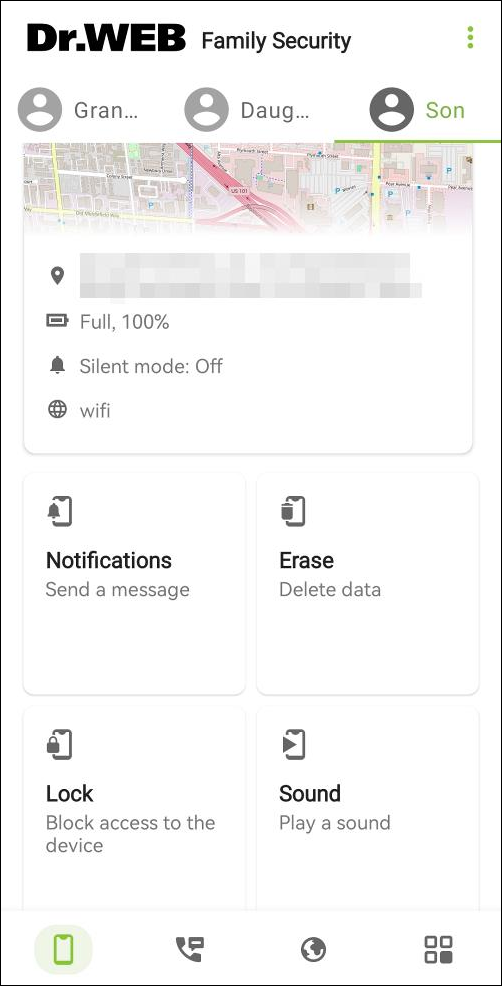
Figure 10: Family manager main screen
Tabs at the bottom of the screen allow you to switch between the main screen and the app components:
• main screen,


Menu  in the top right-hand corner of the main screen allows you to:
•Open My family screen. Here you can add and remove family members. You can also change their information.
•Open application settings.
•Open the License screen.
•Open the account settings screen. Here you can upload a picture, change your role, change or reset your password, change your account settings, delete your account or log out.
•Open the About app screen. Here you can find the links to the Online help, Family Security FAQ and official Doctor Web site. Using the Menu , you can also update or uninstall the app. If you visit official site or FAQ, you can also contact Doctor Web technical support specialists. To do so, tap the  icon at the top of the screen.
The Security setup Not completed panel opens the additional security settings. It appears if one or more settings are not set up.
The Dr.Web Family Security How it works panel opens a short tutorial on how to work with the component. To switch to the next screen in the tutorial, swipe screen to the left or tap Next. To return to the previous screen, swipe to the right. To close the tutorial, tap Close.
Device info panel allows the family manager to request device location and short info on its status.
The following four panels allows the family manager to manage the family member’s device with commands. The commands are sent via push notifications or via SMS. You can choose the method for sending commands when creating each family member’s account. To change the method, open the family member information at My family screen. By default, the commands are sent via push notifications.
|
If you download the app from Google Play, sending commands via SMS and adding phone numbers are not available. The Via push notifications switch is not displayed.
Sending push notifications requires internet connection.
Your mobile operator may charge you for sending SMS. |

Notifications panel allows you to send notifications to family member’s device.
Erase panel allows you to delete personal data on family member’s device.
Lock panel allows you to lock family member’s device.
Sound allows you to remotely play sound on family member’s device.
If you choose to send commands via SMS for a family member, you can also enter commands manually and send them as SMS messages to the phone number of the corresponding device.
Command |
Action |
Lock family member’s device. In response to the command, you will receive the following SMS message: “LOCK##”. |
|
Unlock family member’s device. In response to the command, you will receive the following SMS message: “UNLOCK##”. |
|
Play a sound signal that is impossible to switch off even by rebooting the device. In response to the command, you will receive the following SMS message: “SIGNAL##”. |
|
Turn off sound signal on family member’s device. In response to the command, you will receive the following SMS message: “RESETSIGNAL##”. |
|
Restore the factory settings of the device and delete all personal data from the family member’s device memory. In response to the command, you will receive the following SMS message: “WIPEDATA##”. |
|
Send family member a notification up to 100 characters long. In response to the command, you will receive the following SMS message: “NOTIFY##”. |
|
LOCATE#family member’s PIN code# SMS command will not function for Family Security. The device location map will not be updated even if you receive a response to the SMS command. To locate the device, use the Device info panel.
If you download the app from Google Play, sending commands via SMS is not available. |
Family member main screen
Family member’s main screen shows all restrictions set by the family manager.
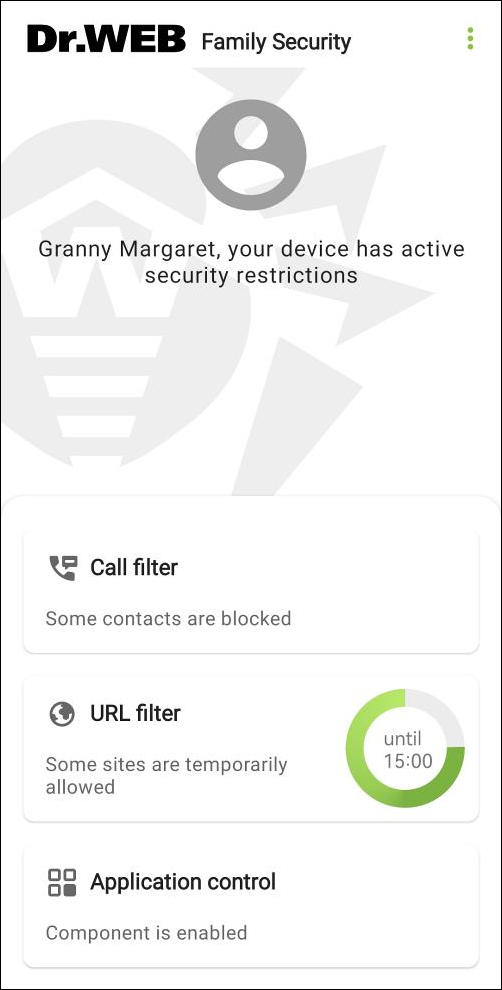
Figure 11: Family member main screen
You can see the family member’s picture on the top of the screen.
To upload a picture, in the Menu select Account. Then tap “plus” and choose a picture on the device or take a new photo. To replace an existing picture, tap the pencil icon.
|
The image size cannot exceed 100 MB. |
Menu in the top right-hand corner of the main screen allows you to:
•Open settings.
•Open the Account screen. Here you can upload or change your picture and view your account information.
•Open the About app screen. Here you can find the links to the Online help, Family Security FAQ and official Doctor Web site. Using the Menu , you can also update or uninstall the app. If you visit official site or FAQ, you can also contact Doctor Web technical support specialists. To do so, tap the icon at the top of the screen.
When the family manager plays the sound, Sound is playing panel appears on the main screen. Panel disappears when the family member or the family manager turns the sound off.